
What is the Text Reveal widget?
The Text Reveal widget is a dynamic typography tool designed to create engaging, motion-based text animations. Instead of displaying static text, this widget allows you to reveal content as the user scrolls or through preset animations, making your headlines and descriptions feel more interactive and premium.
Common use case
Use the Text Reveal widget on a landing page hero section to grab immediate attention. As the user scrolls down, the text can gradually “unmask” or change color, guiding the reader’s eye toward your most important value proposition or call to action.
Additional use cases
- Storytelling sections: Reveal paragraphs of text one by one as the user scrolls to maintain a narrative flow.
- Portfolio highlights: Use subtle reveal effects to make project titles pop when they enter the viewport.
- Feature lists: Highlight specific services by using the “Generate” effect to draw focus to technical details.
Requirements
- You need the Marquee Addons and Marquee Addons Pro plugin installed and activated on your website.
- You can find detailed installation instructions in our dedicated installation blog post.
- Make sure that this addon is enabled so you can find it in the Elementor editor.
- Marquee Addons works only with Elementor Page Builder plugin so you will need to have it installed and activated as well.
Add the widget
- Open your page in the Elementor Editor.
- Search for the Text Reveal widget in the left-hand panel.
- Drag and drop the widget into a column or container on your page.
- Enter your desired text in the Content tab to begin styling.
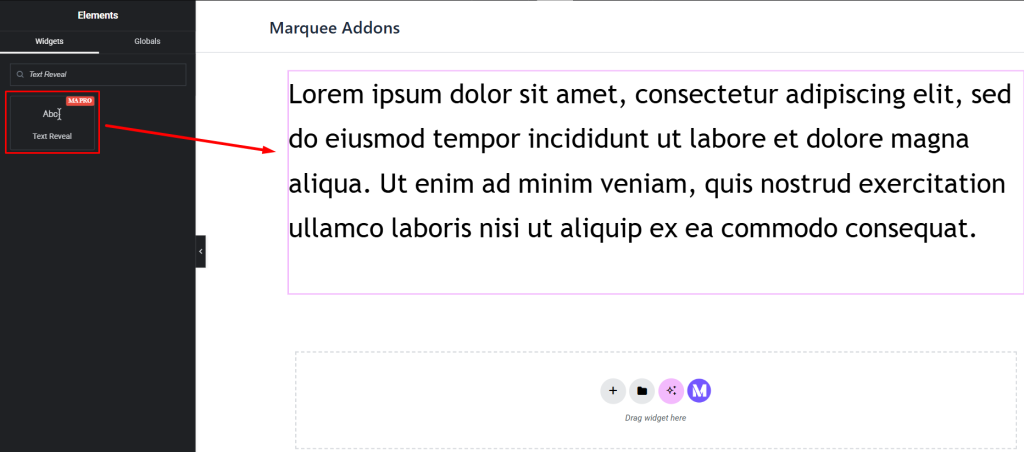
Settings for the Text Reveal widget
Content Tab
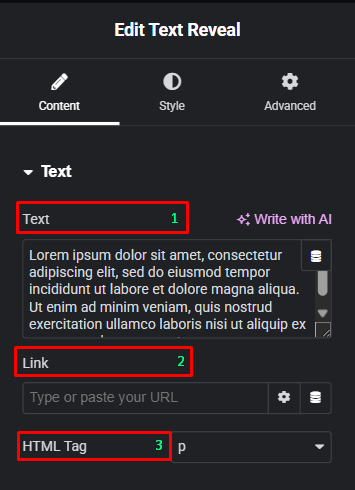
The Content tab allows you to define the core message and the structural HTML of the widget.
- Text: Enter the text you want to animate. You can also use the Write with AI feature to generate copy or use Dynamic Tags to pull content from your site.
- Link: Add a URL to make the entire text reveal block a clickable link.
- HTML Tag: Choose the appropriate tag for your text (e.g., H1-H6, p, div, or span) to ensure proper SEO and accessibility.
Style Tab
The Style tab is where you control the visual appearance and the specific animation triggers.
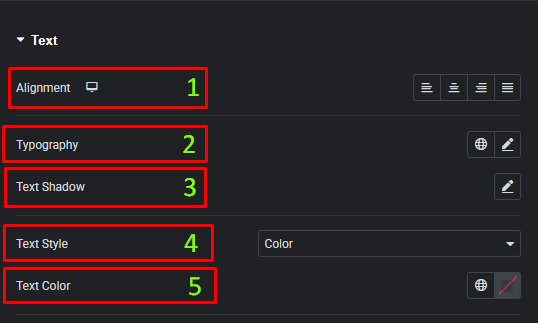
Text
- Alignment: Set the text alignment for Desktop, Tablet, and Mobile.
- Typography: Customize the font family, size, weight, and letter spacing.
- Text Shadow: Add a shadow effect to your text for better depth or legibility.
- Text Style: Choose between standard color or more complex styling options.
- Text Color: Select the primary color of the text before or during the animation.
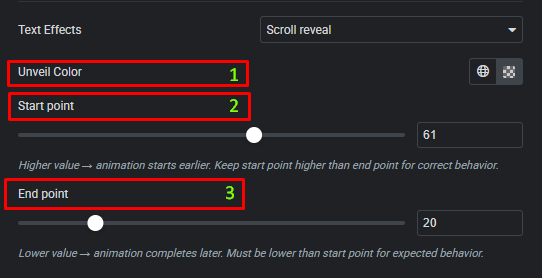
Text Effects
- None: No animation is applied.
- Scroll reveal: The text reveals or changes state based on the user’s scroll position.
- Unveil Color: Set the color used during the reveal animation as the text becomes visible.
- Start Point: Define when the reveal animation begins based on scroll position.
- End Point: Define when the reveal animation completes as the user continues scrolling.
- Generate: A programmatic reveal effect that triggers upon page load or entry.
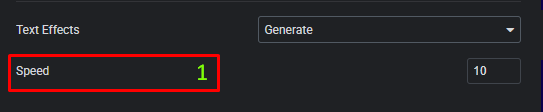
- Speed: Set how fast the text is generated. Higher values make the animation faster, while lower values create a slower, more deliberate reveal.
Advanced Tab
The Advanced tab provides a comprehensive set of controls that are common to most Elementor widgets, allowing for refined design and responsiveness. Here you can adjust the widget’s Layout (e.g., positioning, Z-index), apply engaging Motion Effects (like scrolling effects or entrance animations), customize its Background, add Borders and Box Shadows, apply Masks for unique shapes, control Responsive visibility across devices, add custom HTML Attributes, and inject Custom CSS for bespoke styling.




