
What is the News Ticker widget?
The News Ticker widget is a dynamic and engaging tool designed to display a continuous stream of your website’s posts or other dynamic content in a scrolling banner. It’s an effective way to keep your audience updated with the latest headlines, blog entries, or relevant information without occupying significant screen space. This powerful Elementor component creates an animated, horizontal or vertical stream of content, making it an essential widget for any website looking to present fresh, important information in an eye-catching way.
Common use case
The News Ticker widget is most commonly used to display recent blog posts or news headlines from your website in a prominent, continuously scrolling banner. This banner is often positioned at the top or bottom of a page, ensuring that visitors are immediately aware of your latest content as soon as they land on a page. This feature is perfect for news portals, online magazines, or any site that regularly publishes new articles and wants to drive immediate traffic to its newest content.
Additional use cases
- Highlighting specific content: Showcase posts from particular categories or tags (e.g., “Trending Articles” or “Product Updates”).
- Showcasing author contributions: Display recent posts from specific authors on their profile pages.
- Announcing new content: Draw attention to freshly published articles or updates on your site.
Requirements
- You need the Marquee Addons plugin (Free) installed and activated on your website.
- You can find detailed installation instructions in our dedicated installation blog post.
- Make sure that this addon is enabled so you can find it in the Elementor editor.
- Marquee Addons works only with the Elementor Page Builder plugin, so you will need to have it installed and activated as well.
Add the widget
To add the powerful News Ticker widget to your Elementor-powered website and start creating dynamic scrolling displays, follow these simple steps:
- Open your page or post in the Elementor editor.
- In the Elementor sidebar, use the search bar to find the News Ticker widget.
- Drag the News Ticker widget from the widgets panel and drop it into your desired section or column on your page. This will instantly add a new, engaging scrolling element to your design.

Settings for the News Ticker widget
The News Ticker widget offers extensive customization options categorized into three main tabs: Content, Style, and Advanced.
Content tab
The Content tab is where you define the content source for your news ticker and configure its core scrolling behavior.
Layout
This section defines the general display and introductory elements of the news ticker.
- Post Per Ticker: Set the maximum number of posts to be displayed within the ticker (max 20 posts).
- Show label: Toggles the visibility of a static introductory label for the ticker.
- Title: Enter the text for the static label if ‘Show label’ is enabled (e.g., “Latest News”).
- Title HTML Tag: Select the HTML tag (e.g., H1, H4, div) for the label title for semantic structuring.
- Icon: Choose an icon to be displayed next to the label title.
- Apply To Custom Post Title Length: Toggle whether to apply a custom title length for posts (if applicable to this widget’s dynamic content).
- Open In New Window: Toggle whether the ticker items (posts) open in a new browser tab/window when clicked.
- Gap: Adjust the spacing between individual news items horizontally and vertically.

Query:
This section allows you to define the source and filtering for the dynamic content displayed in the ticker.
- Categories: Filter posts by specific categories.
- Tags: Filter posts by specific tags.
- Authors: Filter posts by specific authors.
- Order By: Choose the criteria for ordering the posts (e.g., Date, Title, Random).
- Order: Set the order as Ascending (ASC) or Descending (DESC).
- Separator Type: Select the type of visual element to separate individual news items within the ticker (e.g., ‘Text’, ‘Icon’).
- Text: If ‘Separator Type’ is ‘Text’, enter the character or phrase to use as a separator (e.g., ‘ • ‘).

Marquee Options:
These settings control the animation and behavior of the scrolling ticker.
- Show Reverse: Toggles the direction of the ticker animation (forward or reverse).
- Pause On Hover: If enabled, the ticker will pause its animation when the user’s mouse hovers over it.
- Animation Speed: Controls how fast the ticker content scrolls. Higher values typically mean faster animation.
- Marque On Scroll: Adds a subtle marquee movement effect while the page is being scrolled.

Style tab
The Style tab allows you to visually customize every aspect of your News Ticker, ensuring it perfectly matches your website’s design.
Layout
Controls the overall dimensions, background, border, and styling for the ticker’s main label/title and its icon.
- Height: Sets the fixed height of the news ticker container.
- Background Type: Sets the background color or gradient for the entire news ticker bar.
- Border Type & Radius: Defines the style of the ticker’s border and rounds the corners.
- Color: Sets the text color of the static label (e.g., “Latest News”).
- Background type: Sets the background color or gradient specifically for the label area.
- Typography: Controls the font, size, weight, and other text properties of the static label.
- Icon Color, Size & Spacing: Adjust the color, size, and space between the label text and its icon.

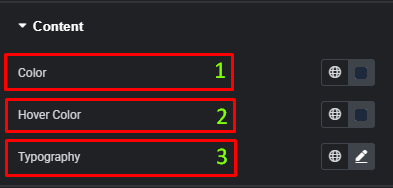
Content
Styles the actual scrolling news items (post titles) within the ticker.
- Color: Sets the text color of the scrolling news items.
- Hover Color: Sets the text hover color of the scrolling news items.
- Typography: Controls the font, size, weight, and other text properties of the scrolling news items.
Text Separator
Styles the text-based separator if selected in the Content tab.
- Text Color: Sets the color of the text separator.
- Typography: Controls the font, size, weight, and other text properties of the text separator.

Advanced tab
The Advanced tab provides a comprehensive set of controls that are common to most Elementor widgets, allowing for refined design and responsiveness. Here you can adjust the widget’s layout (e.g., positioning, Z-index), apply engaging Motion Effects (like scrolling effects or entrance animations), customize its Background, add Borders and Box Shadows, apply Masks for unique shapes, control Responsive visibility across devices, add custom HTML Attributes, and inject Custom CSS for bespoke styling.

Frequently Asked Questions (FAQ)
Q: How does the News Ticker widget pull content from my website?
A: The widget uses Elementor’s powerful Query controls to pull content. In the Content tab, you can specify the exact posts to display by filtering them by Categories, Tags, or Authors. This allows you to create highly relevant and targeted news feeds.
Q: Can I add a title or label to my news ticker?
A: Yes, you can. In the Content tab, within the Layout section, simply turn on the Show label option. You can then enter a custom Title (e.g., “Latest News”) and even add an Icon to create a prominent, static introduction to your scrolling content.
Q: Is it possible to change the scrolling speed and direction?
A: Absolutely. The Marquee Options in the Content tab give you full control over the animation. You can adjust the Animation Speed to make the ticker scroll faster or slower, and you can also use the Show Reverse toggle to change the direction of the scrolling animation.




