
What is the Image Marquee widget?
The Image Marquee widget allows you to organize multiple images or logos into a smooth, continuous scrolling animation within a single container. This is a powerful way to showcase partner logos, product galleries, or certifications concisely, saving vertical space while adding dynamic movement to your site. It improves user experience by allowing visitors to view a large collection of visuals in an organized, non-intrusive way.
- An infinite marquee Elementor layout for smooth scrolling
- Responsive logo marquee that adapts on all devices
- Dynamic image marquee sections for your WordPress templates
- Advanced marquee speed and direction control settings
Improve your Elementor designs with a professional Image Marquee using the powerful widget from Marquee Addons. Whether you need a horizontal logo ticker or a creative image gallery, this widget offers total control over your animations.
Common use case
A common use case for the Image Marquee widget is to display Trust Signals and Partner Logos on a homepage. By utilizing a continuous scroll, you can clearly present all the brands you’ve worked with in a compact row. This builds instant credibility and professional trust without forcing the user to scroll through a long, static list of images.
Additional use cases
- Showcasing client logos: Display logos of companies you have worked with.
- Highlighting sponsors: Create a scrolling banner of event or project sponsors.
- Featured products: Animate a selection of product images on a landing page.
- Team members: Display team photos in a fun, scrolling format on the “About Us” page.
- Product Gallery Tickers: Showcase high-quality product shots in a slow-moving marquee to catch the user’s eye on e-commerce landing pages.
- Certification & Award Walls: group industry badges or awards into a dedicated scrolling section to boost authority.
- Interactive Portfolio Ribbons: Create a vertical or horizontal scrolling ribbon of your best work to act as a creative divider between page sections.
Requirements
- You need the Marquee Addons plugin (Free) or Marquee Addons Pro (For Pro features) installed and activated on your website.
- You can find detailed installation instructions in our dedicated installation blog post.
- Make sure that this addon is enabled so you can find it in the Elementor editor.
- Marquee Addons works only with the Elementor Page Builder plugin, so you will need to have it installed and activated as well.
Add the widget
To add the powerful Image Marquee widget to your Elementor-powered website, follow these simple steps:
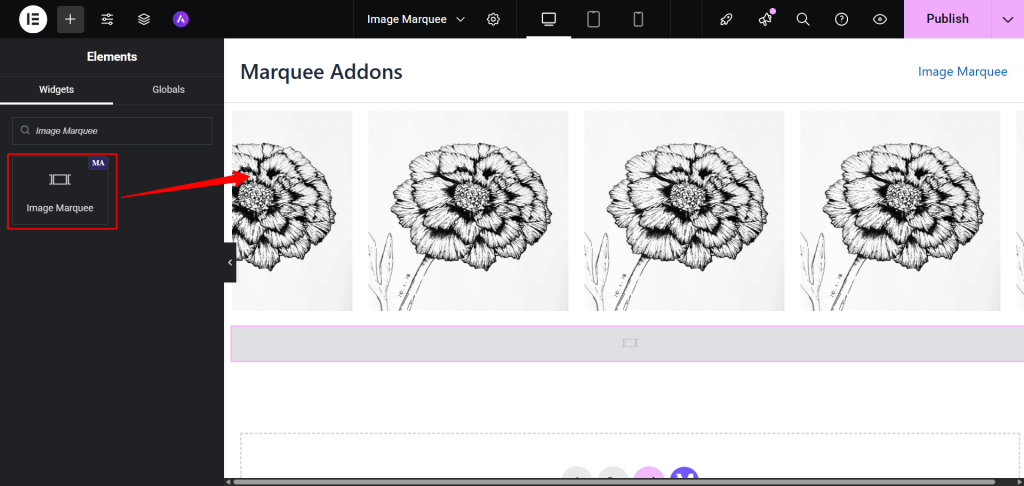
- Navigate to the Elementor editor.
- Search for the Image Marquee widget.
- Drag the widget to your desired location on the page.
Video Tutorial for Image Marquee widget
Watch how to set up a seamless, looping image marquee in minutes.
Settings for the Image Marquee widget
The Image Marquee widget offers extensive customization options categorized into three main tabs: Content, Style, and Advanced.
Content tab
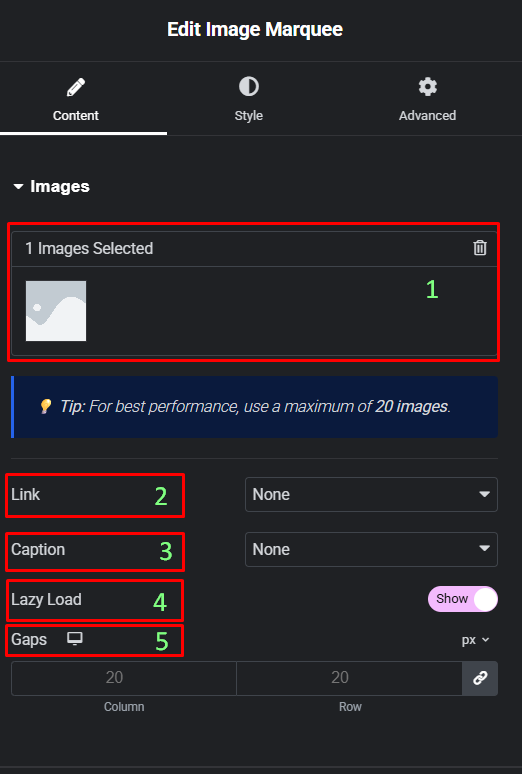
Images:
- Images: Click the
+icon to select and add images from your media library. A tip suggests using a maximum of 20 images for best performance. - Link: Choose to link the images to a Custom URL, a Media File, or select None to disable linking.
- Caption: Set a caption for the images, if needed.
- Lazy Load: Toggle this option to enable or disable lazy loading for the images.
- Gap: Adjust the spacing between each image in the marquee.
Marquee Options:
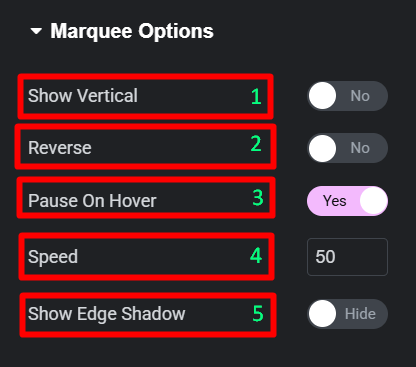
- Show Vertical: Toggle this option to switch between horizontal and vertical scrolling.
- Reverse: Toggle to change the direction of the scrolling animation.
- Pause On Hover: Enable this to stop the animation when a user’s cursor hovers over the marquee.
- Speed: Control the speed of the animation.
- Show Edge Shadow: Toggle this to add a subtle shadow effect to the edges of the marquee.
Style tab
Image:
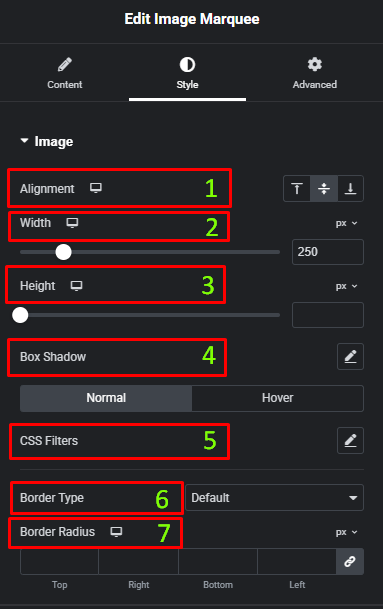
- Alignment: Set the horizontal and vertical alignment of the images.
- Width: Set a fixed width for the images.
- Height: Set a fixed height for the images.
- Box Shadow: Add shadow effects to the images.
- CSS Filters: Apply visual effects such as Blur, Brightness, Contrast, Saturation, and Hue to your images.
- Border Type: Add a border to the images.
- Border Radius: Adjust the corner radius of the images.
Advanced tab
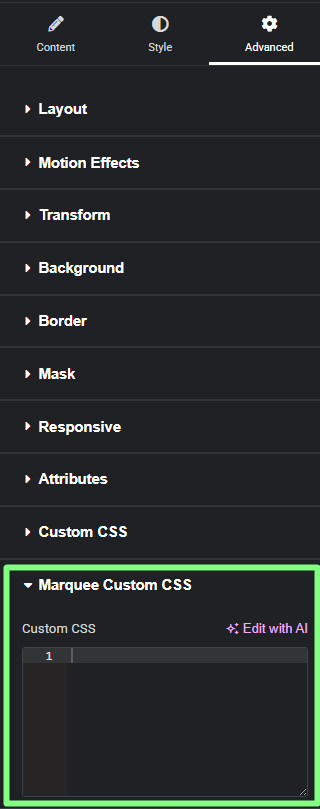
The Advanced tab provides a comprehensive set of controls that are common to most Elementor widgets. Here you can adjust the widget’s Layout (e.g., positioning, Z-index), apply engaging Motion Effects (like scrolling effects or entrance animations), customize its Background, add Borders and Box Shadows, apply Masks for unique shapes, control Responsive visibility across devices, add custom HTML Attributes, and inject Custom CSS for bespoke styling. This widget also includes a specific Marquee Custom CSS section, allowing for even more granular control over its unique animation properties.
Frequently Asked Questions (FAQ)
Can I use this in Elementor Free or do I need Pro?
Our widget works perfectly with Elementor Free. You do not need Elementor Pro to create a professional infinite marquee or add advanced image hover effects.
How do I add a marquee in Elementor?
Simply navigate to your Elementor editor, search for “Image Marquee,” and drag the widget into your section. Add your images to the list to start the animation instantly.
How do I control the speed of the image marquee?
The scrolling speed can be adjusted in the Content tab. Within the Marquee Options, you will find a Speed control that allows you to set how fast or slow the images move across the screen.
How do I make an image hover effect in the marquee?
Within the widget settings, you can enable “Pause on Hover” or apply specific filters that change the image brightness or scale when a user interacts with the scrolling items.
Does the Image Marquee widget slow down my site?
No. Unlike heavy JavaScript-based sliders, our widget uses optimized CSS for the infinite effect, ensuring your site remains fast and passes Core Web Vitals.
Is the Image Marquee mobile-friendly?
Yes. You can specifically adjust the scroll speed and the number of visible images for mobile users to ensure the marquee remains legible and smooth on small screens.




