
What is the Text Marquee widget?
Text Marquee widget is a powerful and flexible Elementor tool designed to create smooth, continuously scrolling text on your website. It turns ordinary static text into a dynamic animated marquee, making it ideal for displaying announcements, promotions, headlines, or key messages in an eye-catching way—without occupying valuable screen space.
Common use case for the Text Marquee widget
A common use case for the Text Marquee widget is to create a dynamic headline banner or a ticker for displaying recent news, promotions, or short announcements. By placing this widget in a prominent area, such as a hero section or the header of a page, you can ensure that visitors are immediately presented with your most important text-based information in a visually engaging and continuously moving format.
Additional use cases
- Highlighting testimonials or quotes: Display short customer quotes or positive feedback in a continuously scrolling loop.
- Announcing special offers: Use the marquee to draw attention to limited-time sales, discounts, or new product launches.
- Showcasing brand partners: Present a list of client or partner names in a sleek, continuously scrolling banner.
Requirements
- You need the Marquee Addons and Marquee Addons Pro plugin installed and activated on your website.
- You can find detailed installation instructions in our dedicated installation guide.
- Make sure that this addon is enabled so you can find it in the Elementor editor.
- Marquee Addons works only with the Elementor Page Builder plugin, so you will need to have it installed and activated as well.
How to Add and Set Up the Marquee Widget
To add the powerful Text Marquee widget to your Elementor-powered website, follow these simple steps:
- Navigate to the Elementor editor.
- Search for the Text Marquee widget.
- Drag the widget to your desired location on the page.

Video Tutorial for Advanced Text Marquee widget
See a video demonstrating the widget in action.
Settings for the Text Marquee widget
The Text Marquee widget offers extensive customization options categorized into three main tabs: Content, Style, and Advanced.
Content tab
The Content tab is where you define the text items for your marquee and configure its core scrolling behavior.
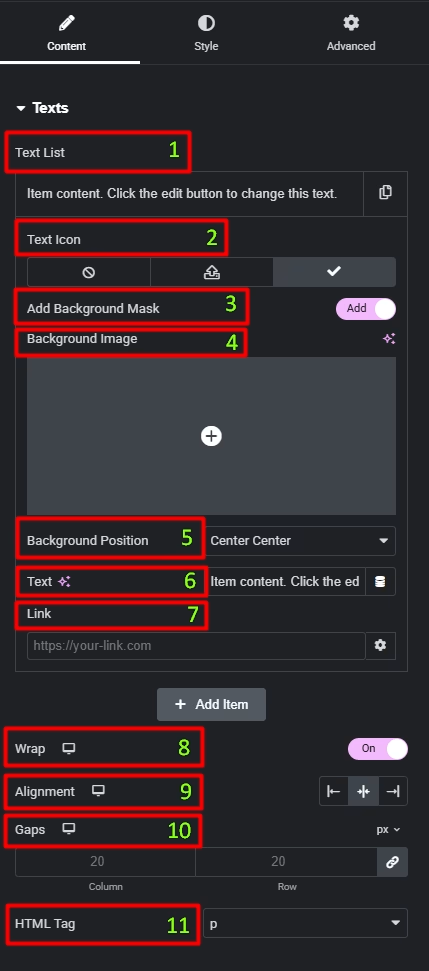
Texts
- Text List: Use this repeater field to add and manage multiple text items. Click Add Item to include more entries.
- Text Icon: Choose an optional icon to display alongside the text item, or disable it if not needed.
- Add Background Mask (Pro): Enable this option to apply a background mask effect behind the text item.
- Background Image (Pro): Upload an image to be used as the background mask when the mask option is enabled.
- Background Position (Pro): Set the position of the background image (e.g., Center Center, Top Left).
- Text: Enter the text content for each list item.
- Link: Add a URL to make the text item clickable (optional).
- Wrap: Enable or disable text wrapping within the marquee. (available when Show Vertical is enabled).
- Alignment: Align text items left, center, or right. (available when Show Vertical is enabled).
- Gaps: Control the spacing between text items by adjusting the Column and Row gaps.
- HTML Tag: Choose the semantic HTML tag (p, span, div, H2–H6) for the text items to match your page structure and SEO needs.
Marquee Options
- Marquee: A toggle to enable or disable the continuous scrolling animation.
- Show Vertical: Enable this for vertical scrolling instead of horizontal.
- Reverse: Change the direction of the animation.
- Pause On Hover: When a user’s mouse hovers over the widget, the animation will stop.
- Drag to Scroll: Toggle this option to allow users to manually drag and scroll through the animation using their mouse or touch.
- Speed: Control the speed of the scrolling animation.
- Show Edge Shadow: Add a subtle shadow effect on the edges of the marquee.
- Marquee on Scroll: Enable a scrolling effect for the marquee.

Style tab
The Style tab allows you to visually customize every aspect of your Text Marquee, ensuring it perfectly matches your website’s design.
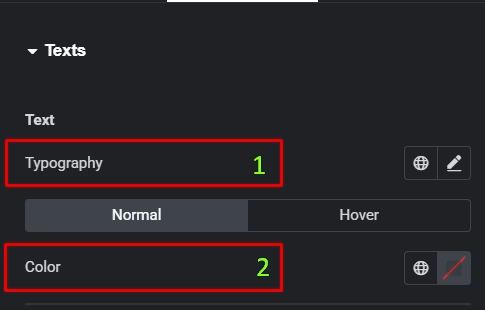
Texts
Customize the appearance of the scrolling text items.
- Typography: Controls the font, size, weight, and other text properties.
- Color: Sets the text color of the marquee items.
Icon
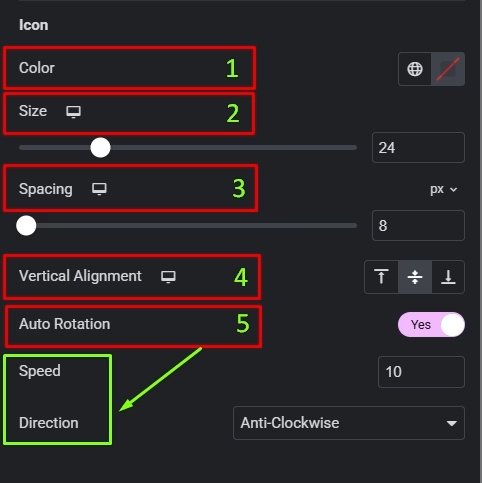
Styles the icon used in the marquee (if any).
- Color: Sets the color of the icon.
- Size: Controls the size of the icon.
- Spacing: Adjusts the space between the icon and text.
- Vertical Alignment: Adjust the alignment of the icon relative to the text.
- Auto Rotation: Enable auto rotation for continuous spinning of the icon (set to Yes for rotation).
- Speed: Adjust the speed of the icon’s rotation (higher values make it rotate faster).
- Direction: Set the rotation direction as Clockwise or Anti-Clockwise.
Layout
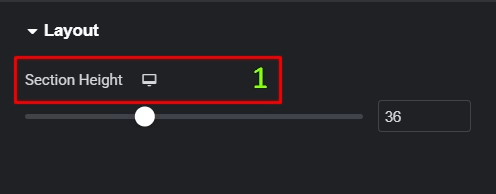
Customize the appearance of the vertical scrolling text layout.
- Section Height: Set the height of the marquee section. (available when Show Vertical is enabled).
Advanced tab
The Advanced tab provides a comprehensive set of controls that are common to most Elementor widgets, allowing for refined design and responsiveness. Here you can adjust the widget’s Layout (e.g., positioning, Z-index), apply engaging Motion Effects (like scrolling effects or entrance animations), customize its Background, add Borders and Box Shadows, apply Masks for unique shapes, control Responsive visibility across devices, add custom HTML Attributes, and inject Custom CSS for bespoke styling. This widget also includes a specific Marquee Custom CSS section, allowing for even more granular control over its unique animation properties.

Frequently Asked Questions (FAQ)
Can I change the direction of the scrolling text?
Yes. In the Content tab, under the Marquee Options section, you can use the Reverse toggle to change the direction of the scrolling animation.
How do I control the speed of the marquee?
The scrolling speed can be adjusted in the Content tab. Within the Marquee Options, you will find a Speed control that allows you to set how fast or slow the text moves across the screen.
Can I add a custom icon to my text items?
While the provided screenshots do not show an icon picker in the content area, the Style tab includes an Icon section with controls for Color, Size, and Spacing. This indicates that icons can be styled and are a potential feature for separating text items within the marquee.
What can I use the Text Marquee widget for?
You can use the Text Marquee widget to display announcements, promotions, breaking news, brand slogans, testimonials, or partner names. It’s especially useful for headers, hero sections, announcement bars, and promotional banners.
Does the Text Marquee widget support continuous scrolling?
Yes, the widget supports infinite and continuous scrolling, creating a smooth loop effect. You can control the scrolling speed, direction (left, right, up, or down), and animation behavior for a seamless marquee experience.




