What is the Light Pulse Background effect?
The Light Pulse Background Effect is a stunning visual feature in Marquee Addons Pro that creates a pulsating light effect with smooth color transitions. This effect can be applied to any container in Elementor, adding an engaging, dynamic background that draws attention to important sections of your website. The pulse effect can be customized with multiple colors, animation speeds, and blur settings, giving you full control over the intensity and smoothness of the effect.
Common use case
A common use case for the Light Pulse Background Effect is in Call-to-Action (CTA) sections, where the effect helps focus attention on buttons or key messages. By gently pulsing, the background creates an inviting atmosphere that encourages user interaction without overwhelming the content.
Additional use cases
- Hero Sections: Create a captivating, visually rich background that captures the visitor’s attention immediately.
- Event Announcements: Use the pulse effect to highlight special offers, sales, or upcoming events in a modern and stylish way.
- SaaS Landing Pages: Create a sophisticated, interactive background to give your website a sleek, modern look.
- Interactive Portfolios: Enhance your portfolio with a background effect that gives a fresh, vibrant vibe while not distracting from your work.
Requirements
To use the Light Pulse, you need to have the following:
- You need the Marquee Addons Pro plugin installed and activated on your website.
- You can find detailed installation instructions in our installation guide.
- Make sure that this addon is enabled so you can find it in the Elementor editor.
- Marquee Addons works only with the Elementor Page Builder plugin, so you will need to have it installed and activated as well.
Add the extension
The Light Pulse isn’t a standalone widget; it is an enhancement found within the settings of any Container.
- Open your Elementor editor and select an existing Container or drag a new one onto the canvas.
- Go to the Style Tab in the panel.
- Locate the section labeled MA Background.
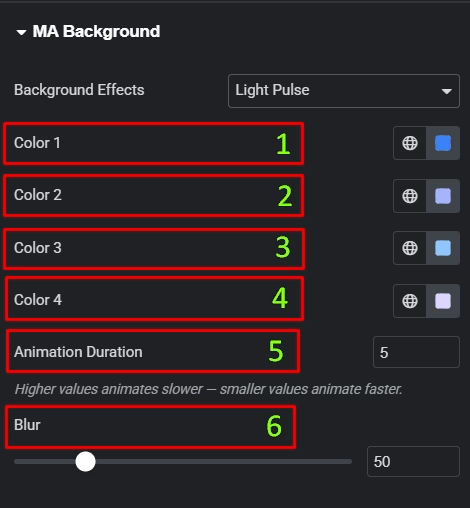
- Toggle the Background Effects dropdown to choose Light Pulse.
Settings for the Light Pulse effect
All Light Pulse controls are located in the Style tab of the selected Container.
- Colors (First through Fourth): Customize up to 4 different colors to blend into the aurora.
- Animation Duration: Set the speed of the pulse animation. Higher values make the pulse slower, while lower values make it faster.
- Blur: Adjust the blur effect on the pulse to soften or sharpen the overall appearance of the background.