What is the Aurora Background effect?
The Aurora Background effect is a dynamic background option available in the MA Background extension of Marquee Addons Pro. It creates smooth, flowing gradient animations inspired by natural aurora lights, adding depth and motion to Elementor Containers without using videos or heavy media files. This effect is ideal for creating immersive sections with a modern, premium feel.
Common use case
A common use case for the Aurora Background effect is in hero sections and intro banners, where subtle gradient motion helps draw attention to headlines and calls to action while maintaining a clean and elegant layout.
Additional use cases
- SaaS landing pages: Add a polished, high-tech look to feature or pricing sections.
- Marketing sections: Enhance value propositions with smooth animated gradients.
- Portfolio websites: Create visually rich section backgrounds without distraction.
- Call-to-action blocks: Add visual emphasis without overpowering the content.
Requirements
To use the Aurora Background, you need to have the following:
- You need the Marquee Addons Pro plugin installed and activated on your website.
- You can find detailed installation instructions in our installation guide.
- Make sure that this addon is enabled so you can find it in the Elementor editor.
- Marquee Addons works only with the Elementor Page Builder plugin, so you will need to have it installed and activated as well.
Add the extension
The Aurora Background isn’t a standalone widget; it is an enhancement found within the settings of any Container.
- Open your Elementor editor and select an existing Container or drag a new one onto the canvas.
- Go to the Style Tab in the panel.
- Locate the section labeled MA Background.
- Toggle the Background Effects dropdown to choose Aurora.
Video Tutorial for Aurora Background effect
See a video demonstrating the effect in action.
Settings for the Aurora Background effect
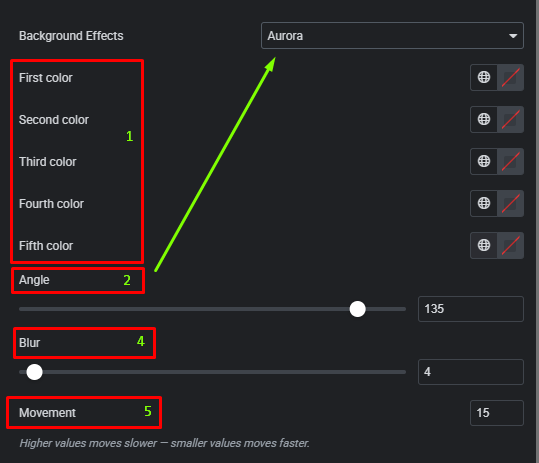
All Aurora Background controls are located in the Style tab of the selected Container.
- Colors (First through Fifth): Customize up to 5 different colors to blend into the aurora.
- Angle: Change the orientation of the flow.
- Blur: Adjust the softness of the color transitions.
- Movement: Control the animation speed (Higher values move slower; smaller values move faster).