
What is Image Rotation?
Image Rotation is a lightweight widget in Marquee Addons that adds continuous rotation to images inside the Elementor Image widget. Instead of using static visuals, you can apply smooth clockwise or anti-clockwise rotation to logos or decorative images, helping create subtle motion and visual interest without custom CSS or JavaScript. This effect is ideal for adding movement while keeping layouts clean and performance-friendly.
Common use case
A common use case for Image Rotation is adding subtle motion to logos or brand elements, such as rotating partner logos, badges, or decorative images. The gentle rotation draws attention without overwhelming the layout, helping key visuals stand out while maintaining a clean, professional design.
Additional use cases
- Hero section accents: Add slow rotation to background or decorative images for a modern, dynamic hero area.
- Feature highlights: Rotate icons or illustrations next to feature descriptions to increase visual engagement.
- Call-to-action sections: Use rotating shapes or arrows to naturally guide attention toward buttons or forms.
- Portfolios & creative sites: Add motion to artwork or design elements to create a more interactive feel.
- Landing pages: Enhance static layouts with lightweight animation that doesn’t impact performance.
Requirements
To use the Image Rotation, you need to have the following:
- You need the Marquee Addons Pro plugin installed and activated on your website.
- You can find detailed installation instructions in our installation guide.
- Make sure that this addon is enabled so you can find it in the Elementor editor.
- Marquee Addons works only with the Elementor Page Builder plugin, so you will need to have it installed and activated as well.
Add the extension
The Image Rotation isn’t a standalone widget; it is an enhancement found within the settings of any Elementor Image.
- Open your Elementor editor and select an existing Image or drag a new one onto the canvas.
- Go to the Content Tab in the panel.
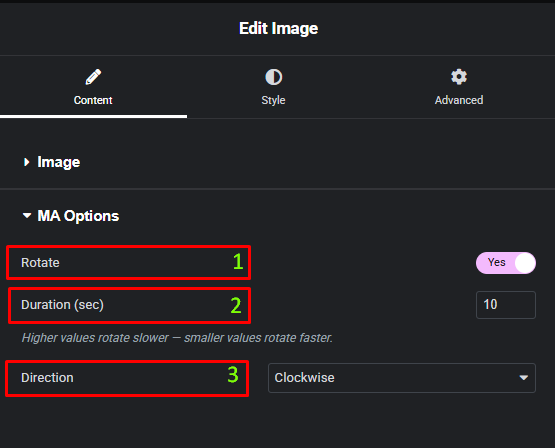
- Locate the section labeled MA Options.
- Toggle Rotate to Yes.
Video Tutorial for Image Rotation
See a video demonstrating the effect in action.
Settings for Image Rotation
All Image Rotation controls are available inside the Elementor Image widget → Content tab → MA Options.
- Rotate: Enable or disable the rotation animation for the selected image.
- Duration (sec): Set how long one full rotation takes. Higher values result in slower rotation.
- Direction: Choose the rotation direction:
- Clockwise
- Anti-Clockwise
Frequently Asked Questions (FAQ)
Does Image Rotation affect website performance?
No. Image Rotation is lightweight and CSS-based, so it has minimal impact on performance when used responsibly. It’s safe for logos, icons, and decorative images.
Can I control the rotation speed?
Yes. You can adjust the Duration (sec) setting to control how fast or slow the image rotates. Higher values rotate slower, lower values rotate faster.
Does Image Rotation work on all devices?
Yes. The rotation effect works smoothly on desktop, tablet, and mobile devices without additional configuration.
Can I use Image Rotation on multiple images on the same page?
Yes. You can enable Image Rotation on as many Image widgets as needed, each with its own speed and direction settings.




